Open the Skyscanner website
In your browser, go to www.skyscanner.net. The homepage will load with a flight search form — this is your starting point for any search.
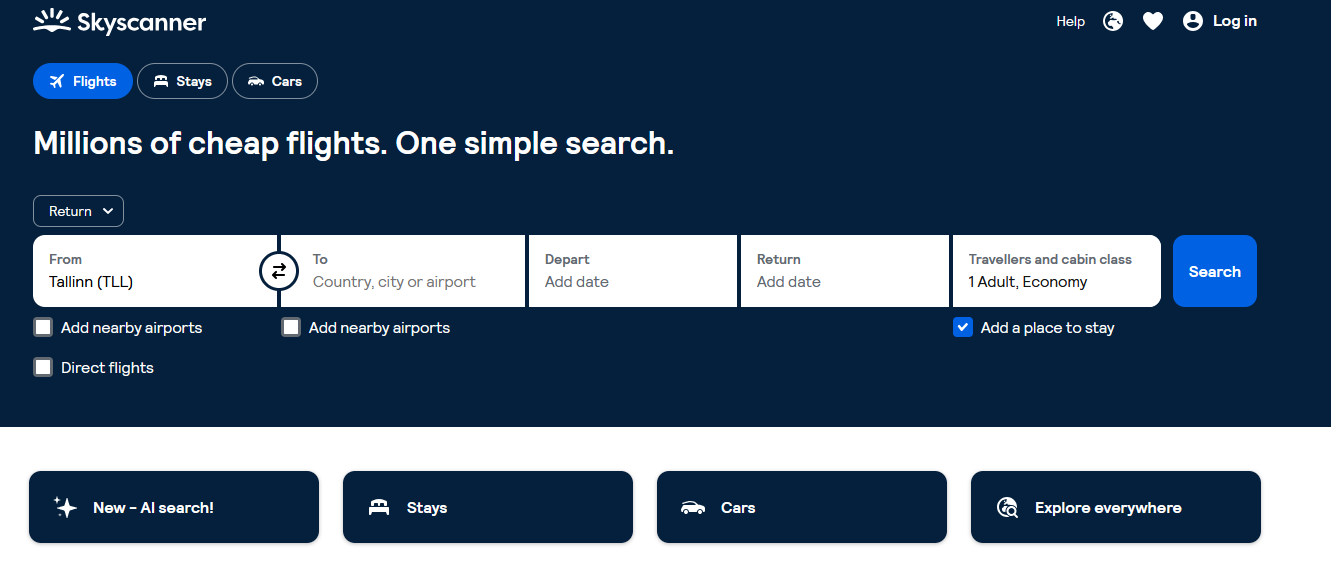
Check the “Flights” tab
Make sure the “Flights” tab is selected at the top of the page. You’ll also see tabs for hotels and car rental — we only need the first one.
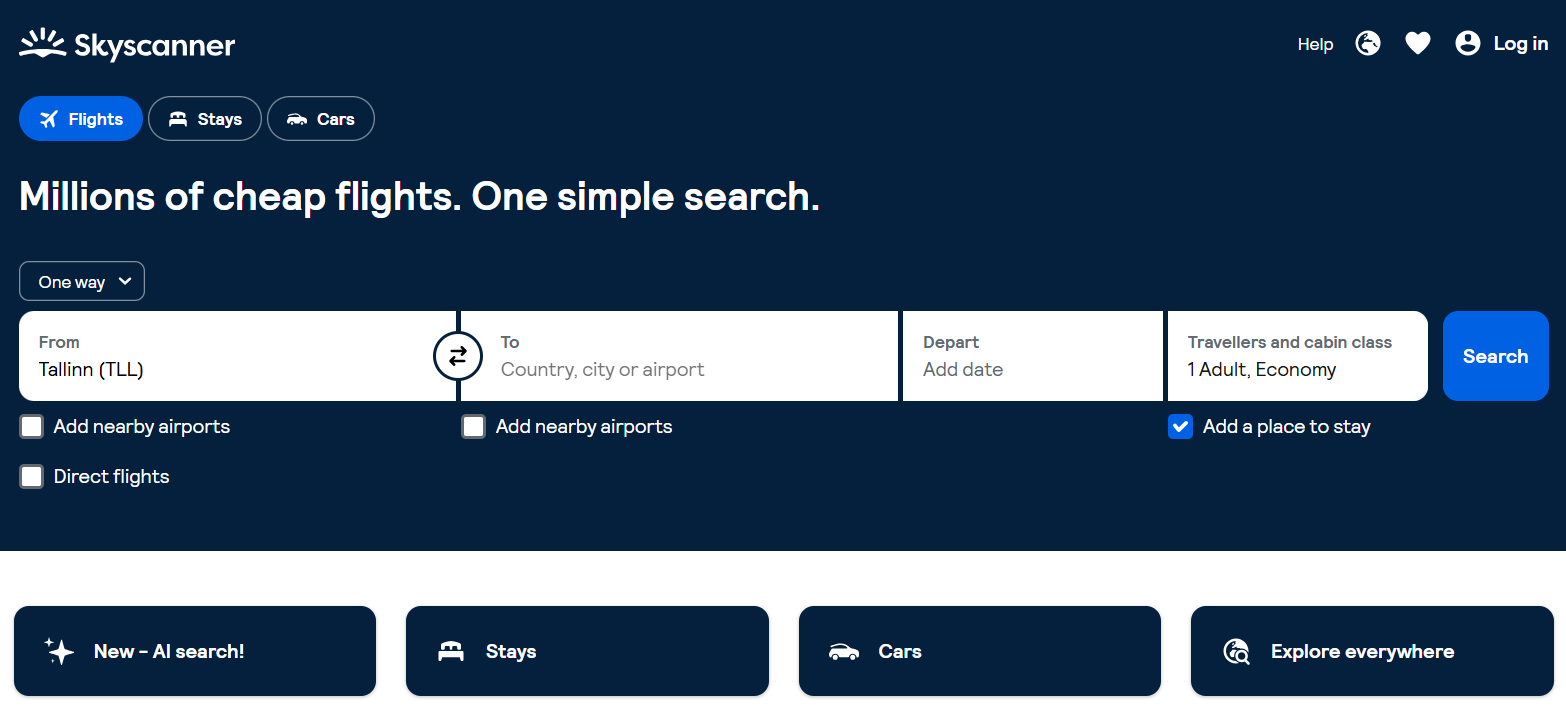
Enter your departure city
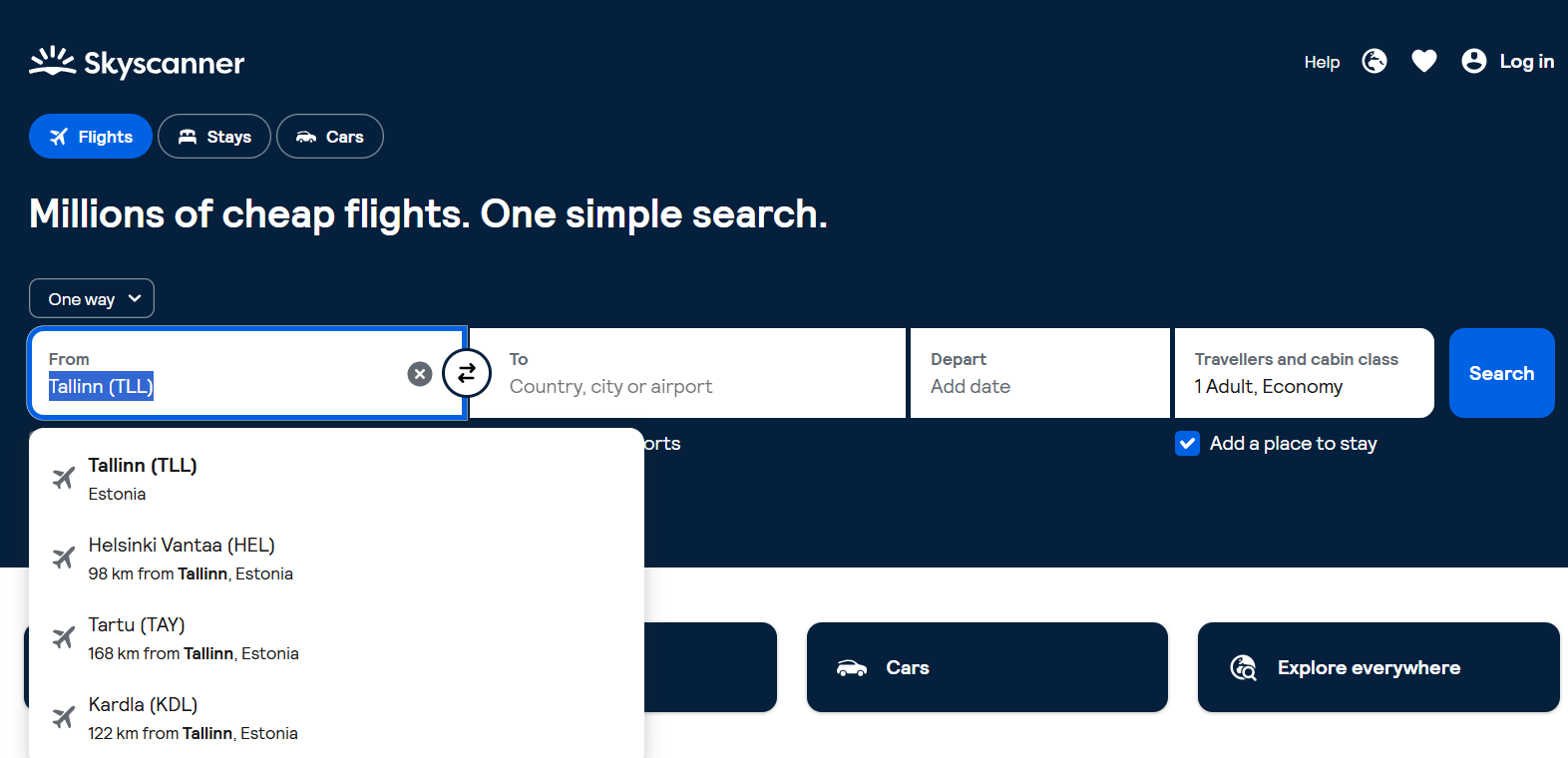
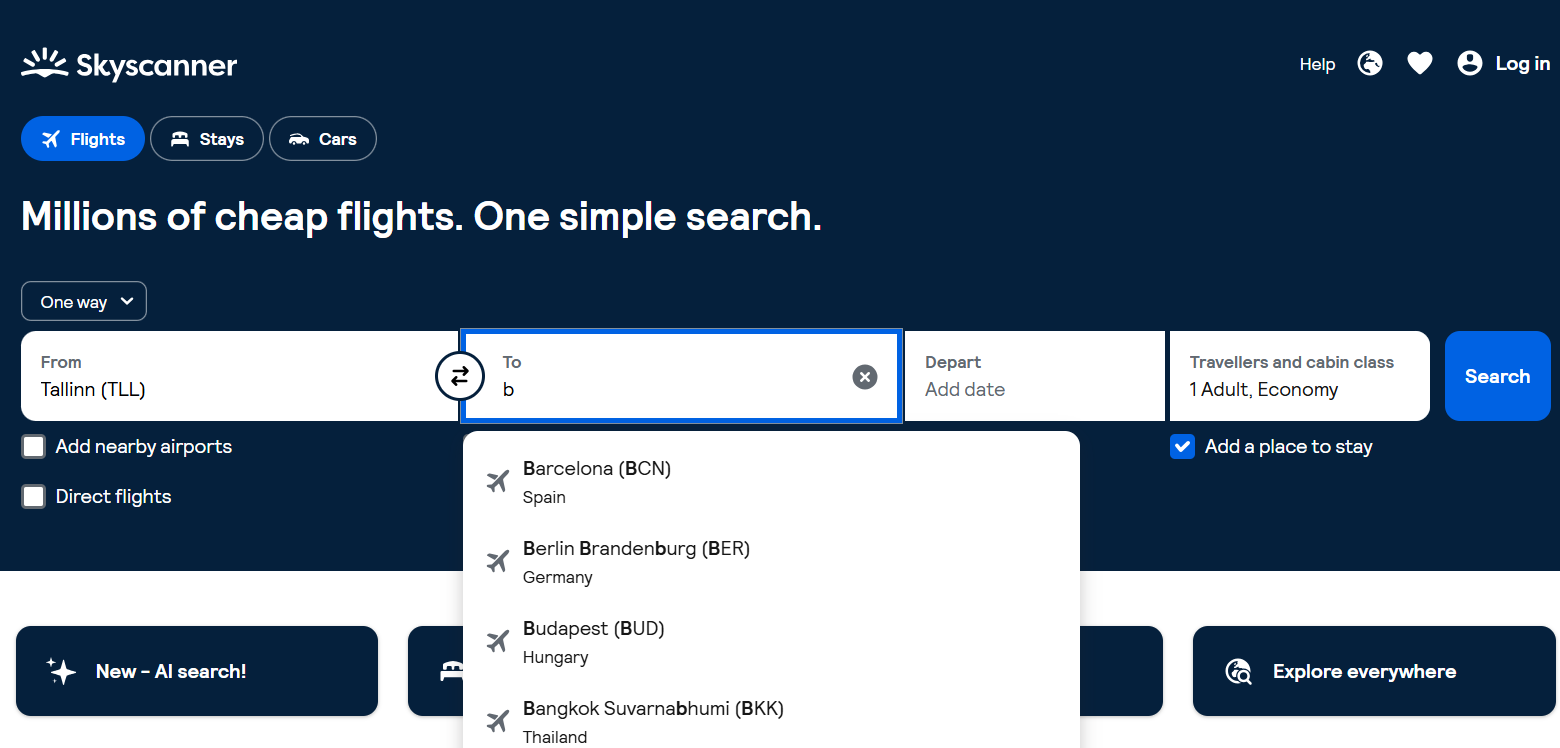
Click the “From” field and type the name of your city or airport. The site will suggest matching options — pick the right one from the list.
Enter your destination
In the “To” field, type the city you want to fly to. If you don’t have a specific destination in mind, select “Everywhere” instead.
Choose your travel dates
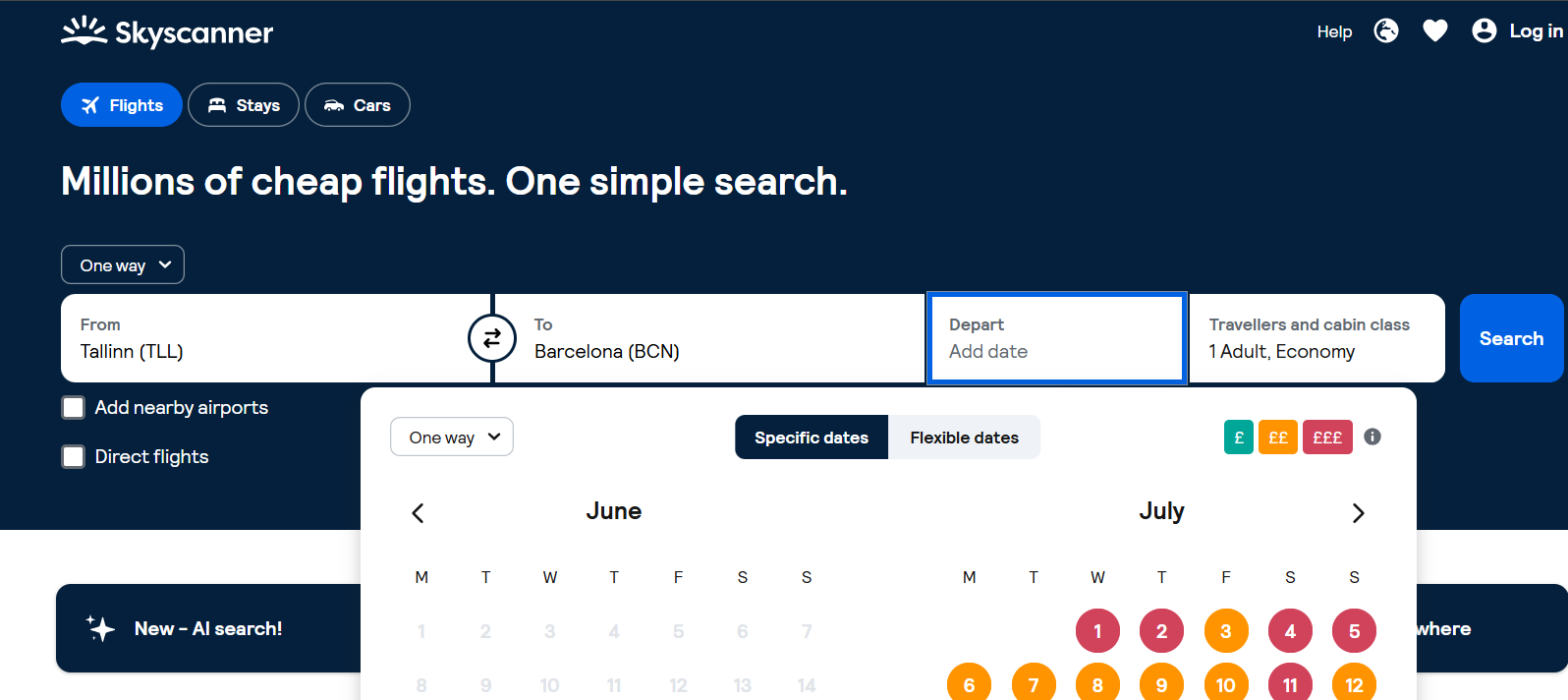
Click the calendar and select your departure date (and return date, if needed). Pick exact dates or choose “Whole month” to see the cheapest day to fly.
Set passengers and travel class
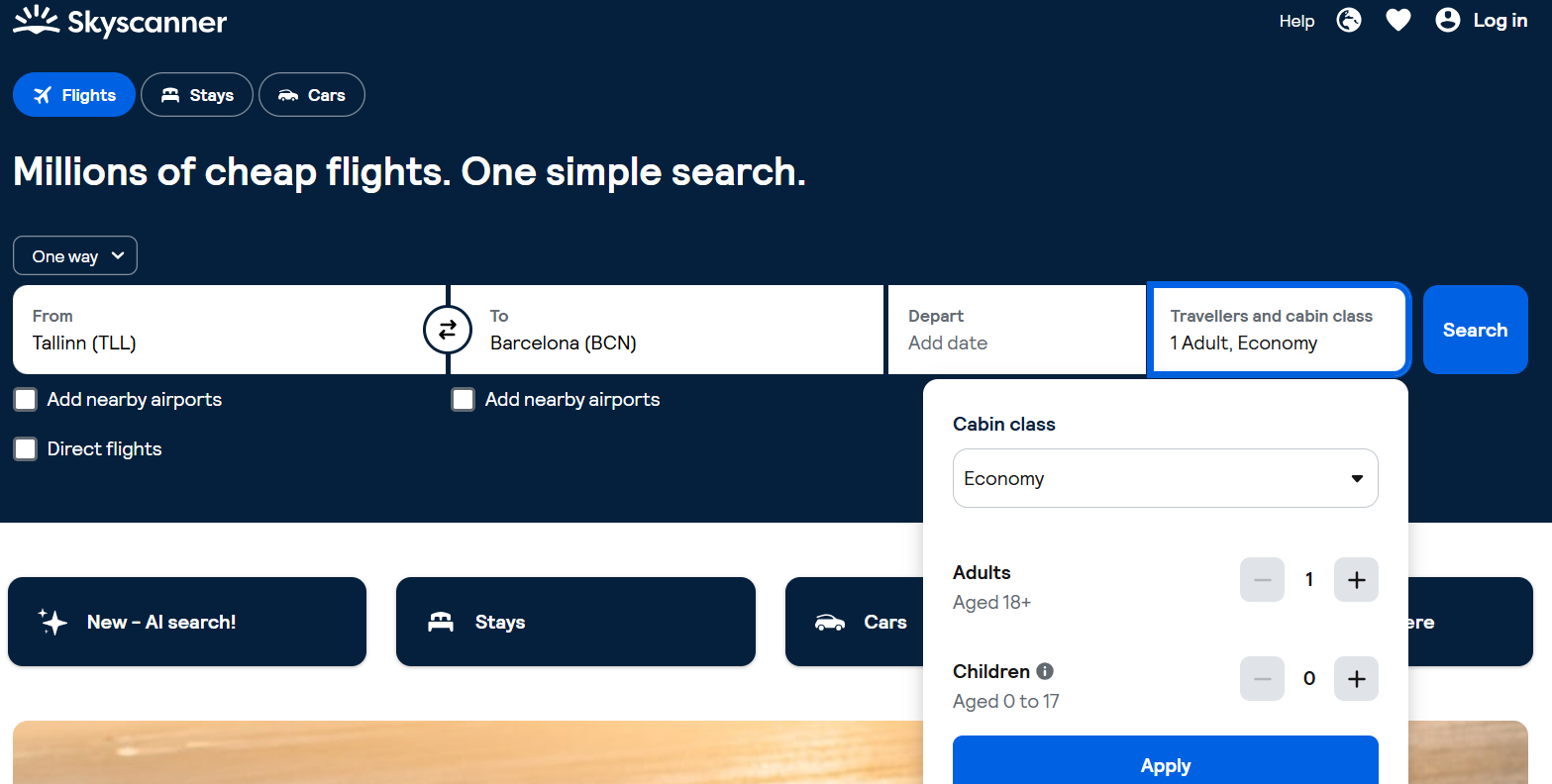
Click the passengers field and choose the number of adults, children, and infants, plus your travel class: Economy, Premium Economy, Business, or First.
Click “Search flights”
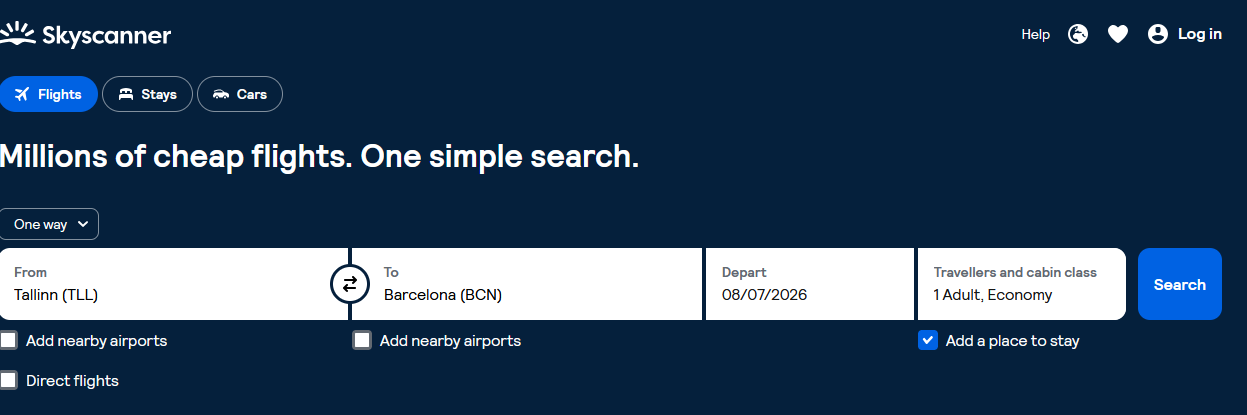
Double-check everything you entered, then click the large search button. Skyscanner will scan dozens of airlines and agencies at once.
Sort the results
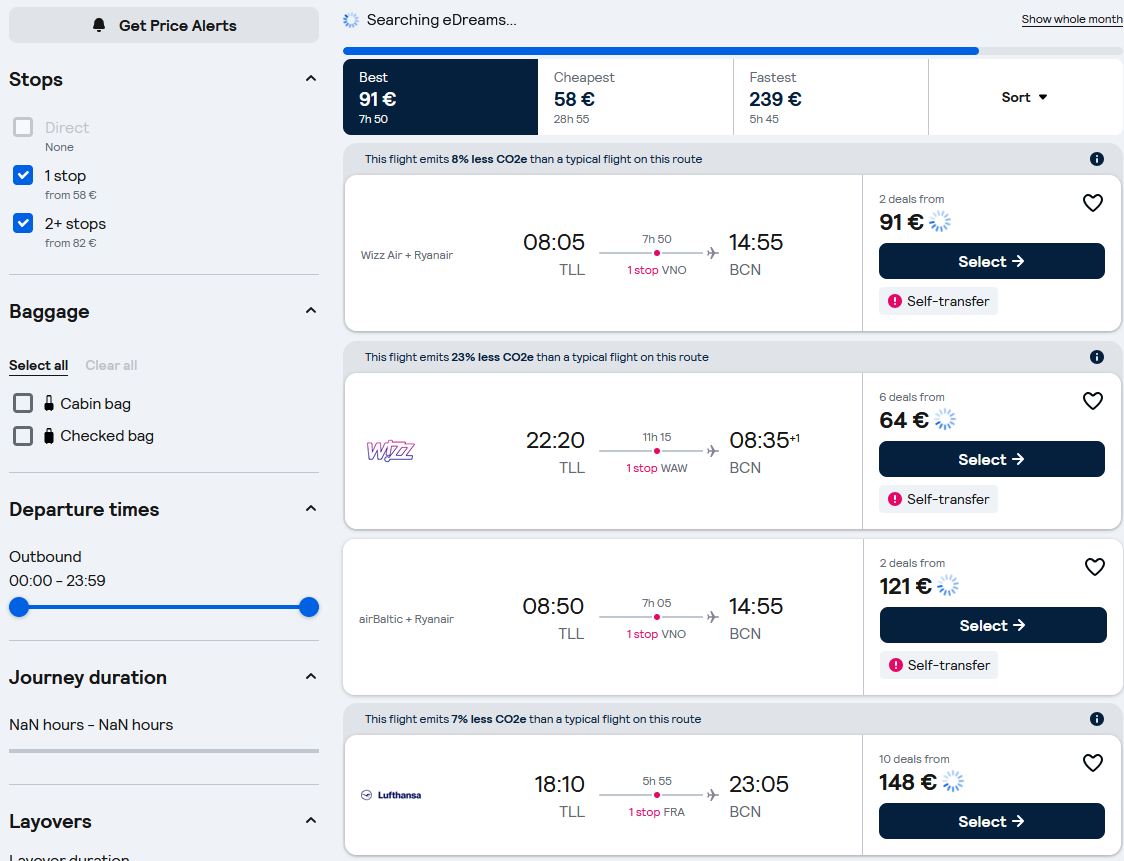
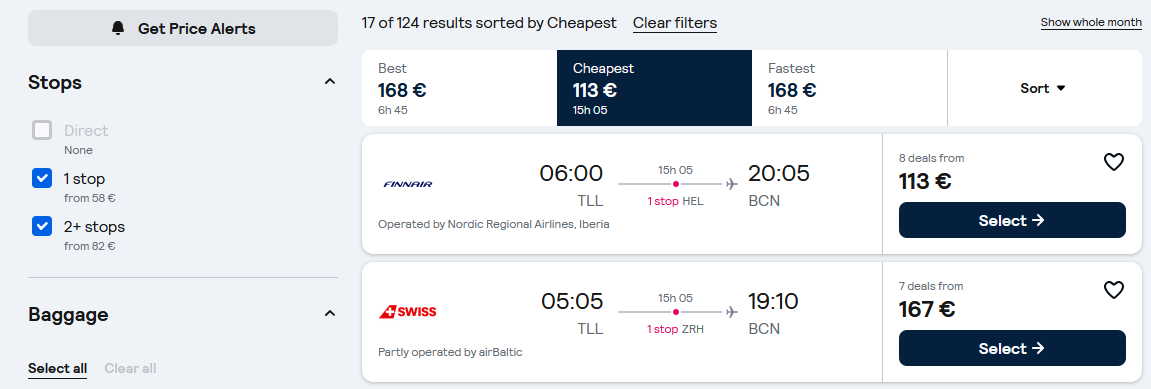
On the results page, use the sorting options: “Best”, “Cheapest”, or “Fastest” — this helps you quickly find the option that suits you.
Apply filters
On the left side of the page, use filters for number of stops, specific airlines, departure time, airports, or even “Greener choice” flights with lower CO₂ emissions.
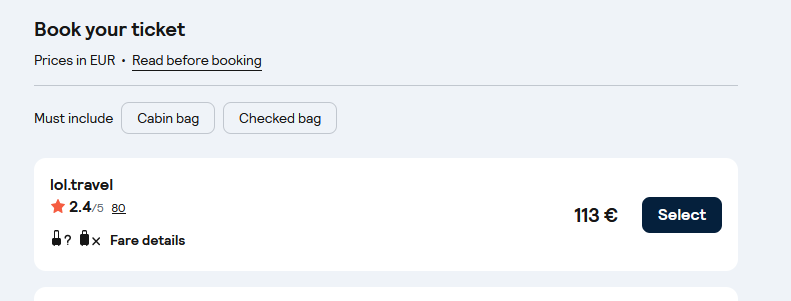
Select a flight and book
Click “Select” on the flight you want. Skyscanner will redirect you to the airline’s or partner agency’s website to complete payment and booking.